Category B Application Process

Log In

Start by logging in to your Gateway account with the username and password that you created for your account.

Gateway_Registration_Homepage

After you log in, you will see the Profile Home page.

Application_Profile_Home

Click on the “Applications” tab at the top of the page to apply for a new license.

On the next page, locate the Category B application section and click on the blue “Apply” button.

CategoryB_Application_Home_Category_B

Application Start

The next page will bring you to the start of the Category B application page, including information on required documents and fees for Category B licensure.

CategoryB_Application_Start (1)

Click “Next.”

Personal Information

Personal Information will be auto-populated with the information that was created during your account creation.

Check to ensure all information is accurate. In addition, there are required questions regarding Military status.

CategoryB_Application_Personal_Information_Military_Questions

CategoryB_Application_Personal_Information_Address

When complete, click “Save and Continue” at the bottom of the page.

Education

On the next page, click on the green “Add Education” button to add all colleges and universities attended.

CategoryB_Application_Education

Complete requested information for each institution attended:

CategoryB_Application_Add_Education

Click “Submit.”

You will now see the Education Information added to your profile:

CategoryB_Application_Education_Added

Add any additional Education, then click “Save and Continue” at the bottom of the page.

Experience

Add information on your supervised practice experience, then click “Save and Continue” at the bottom of the page.

CategoryB_Application_Supervised_Experience

Examination Information

Select the appropriate option regarding “CDR Examination Status,” then select “Save and Continue” at the bottom of the page.

CategoryB_Application_Examination_Information

Employment Information

CategoryB_Application_Employment_Information

This section requests all work experience during the 5 years preceding the filing of this application. Click the corresponding checkbox if you have not been employed in any way in the past 5 years.

To add employment information, click on the green “Add Employment” box and the following screen will open:

Employment Information - Add Employment

CategoryB_Application_Add_Employment

Complete the requested information and click “Submit.”

Continue to add any additional employment information until all employment has been listed.

Employment Information – Supervisor Verification Statement

Review the Supervisor Verification Statement and click “I Agree” at the bottom if you agree.

CategoryB_Application_Employment_Information_Supervisor_Verification_Statement

Employment Information – Primary Area of Practice

*Select a Primary Area of Practice by clicking on the drop down menu and selecting one of the options available – a response to this question is required.

CategoryB_Application_Employment_Information_Primary_Area_of_Practice

CategoryB_Application_Employment_Information_Primary_Area_of_Practice_dropdown_options

If you do not see an Option that fits your primary area of practice, select “Other” and then provide a description:

CategoryB_Application_Primary_Area_of_Practice_Dropdown_Options_Other

Legal Questions

Answer all legal questions, providing additional information in the boxes, if/as necessary.

The first question is regarding whether you have ever possessed a license or certificate to practice dietetics/nutrition in a state other than North Carolina:
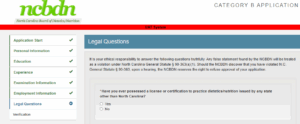
CategoryB_Application_Legal_Questions_Other_State_License

If you select “Yes,” an option to “Add License” will pop up – click on the “Add License” button:
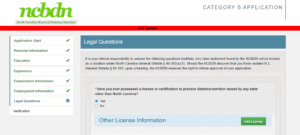
CategoryB_Application_Legal_Questions_Other_State_License_Yes

Complete the requested out of state license information as requested below, then click “Submit.”
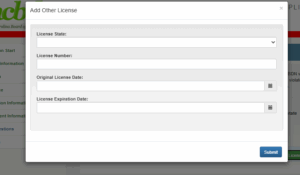
CategoryB_Application_Legal_Questions_Other_State_License_Yes_Add_Other_License

The next question asks “Have you ever been denied professional licensure, certification, or registration in any state for any reason?”

CategoryB_Application_Legal_Questions_Denied_License_Question

If you select “Yes,” a “Denied License Information” section will appear.
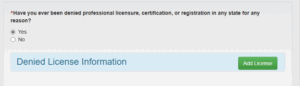
CategoryB_Application_Legal_Questions_Denied_License_Add

Click on the green “Add License” button to the right.
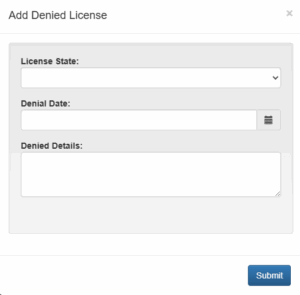
CategoryB_Application_Legal_Questions_Denied_License_Add_Information

Add the requested information, then click on the blue “Submit” button.

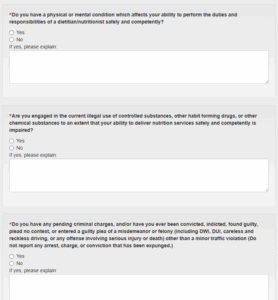
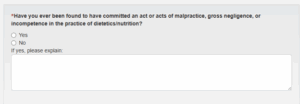
Answer yes or no to the following questions – if yes, add explanation in the comment box below.
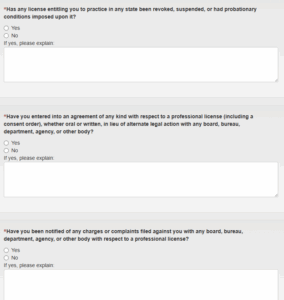
CategoryB_Application_Legal_Questions_License_Discipline

CategoryB_Application_Legal_Questions_Competency_Crim_Charges

CategoryB_Application_Legal_Questions_Malpractice_Incompetence

The next question is regarding employee classification. Answer truthfully and select the appropriate responses, and provide more details in the box provided, if necessary.
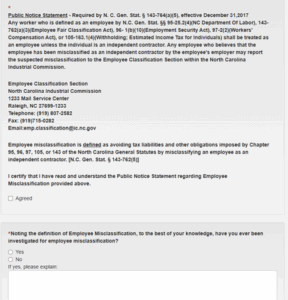
CategoryB_Application_Legal_Questions_Employee_Classification

Click “Save and Continue” at the bottom of the page:

CategoryB_Application_Legal_Questions_Employee_Classification_Continue

Verification

The final section of the application is “Verification” – this is where you review the responses you provided for the entire application and have a chance to make any corrections, if needed.

If a correction is needed, scroll to the bottom of the page and click “Previous” to go back to the section where the correction needs to be made, save the changes, and then select “Save and Continue” until you return to the “Verification” page.

CategoryB_Application_Verification

After you have verified that all information provided on your application is correct, scroll to the bottom of the Verification page and read through the “Terms of Agreement.” You will then type your name as your Electronic Signature and then select that you agree to the terms of the agreement. You will not be able to complete your application if you do not select that you agree.

When you have completed this section, click “Save and Continue” at the bottom of the page to submit your application.

CategoryB_Application_Verification_Terms_of_Agreement

Application Payment

After your application has been submitted, you will be automatically directed to the Application Payment page to make a payment:

CategoryB_Application_Payment